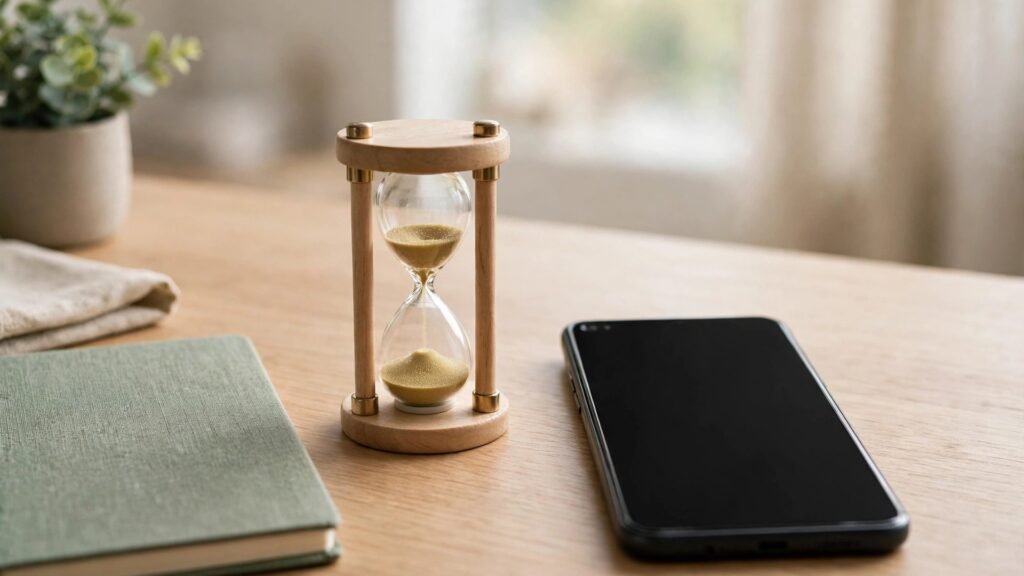
If you want to spend less time scrolling without giving up your phone altogether, learning how to set app limits on your phone is one of the simplest places to start. An app limit is a daily time cap you place on a single app or a group of apps. Once the time runs out, the app pauses for the rest of the day, and you have to make a conscious choice to continue. That small pause is the whole point: it turns an automatic habit into a decision.
Most people do not open an app planning to lose an hour. They open it for one message or one video, and the feed keeps offering one more thing. A limit does not remove the app from your life. It simply draws a line you chose yourself, at a moment when you were thinking clearly, instead of in the middle of a scroll.
Key Takeaways
- An app limit turns endless scrolling into a conscious decision by pausing the app once your daily time is up.
- Start with one or two apps and a generous limit, then tighten it slowly instead of cutting everything at once.
- Review your limits once a week and adjust them to fit real life, not a perfect schedule.
Why App Limits Work Better Than Willpower Alone
Willpower is unreliable because it is needed most exactly when you are tired, bored, or stressed, which is also when you reach for your phone. A limit works differently. You set it once, when you are calm, and then the phone enforces it for you. You do not have to argue with yourself every evening.
Limits also show you the truth about your habits. Many people are surprised by which apps actually eat their time. A social app might take less than you feared, while a game or a shopping app quietly takes far more. Seeing that picture helps you pick limits that matter instead of guessing.
It helps to pair limits with other small systems. If you already use your phone’s focus mode to silence notifications during work, an app limit adds a second layer: even when you do pick up the phone, the most distracting apps stop after their share of the day. And if you plan your day with time blocking, limits protect those planned blocks from being eaten by a feed.
How to Set App Limits on Your Phone, Step by Step
Both major phone systems have this feature built in, so you do not need to install anything extra. The names differ slightly, but the idea is the same.
On an iPhone, open Settings, then Screen Time, then App Limits. Tap Add Limit, pick a category or individual apps, and choose how much time they may be used each day. You can set different limits for different days if your weekends look different from your weekdays. When the limit is reached, the app icon dims and opening it asks whether you want a little more time or want to stop for today.
On an Android phone, open Settings, then Digital Wellbeing, then find the app you want to limit and set a daily timer for it. Some Android phones place this under a slightly different menu name depending on the maker, but the timer works the same way: once the minutes are used, the app pauses until the next day.
Start with the apps that most often steal time you meant for something else. For most people that is one or two social apps, a video app, or a game. Leave work tools, maps, banking, and messaging apps unlimited at first. The goal is to cut the scroll, not to make your phone hard to use.
A limit does not remove the app from your life. It simply draws a line you chose yourself, at a moment when you were thinking clearly, instead of in the middle of a scroll.
Start Small: Limits You Can Actually Keep
The biggest mistake with app limits is setting them too strict on day one. A two-hour daily cap on an app you currently use for four hours will feel like a punishment, and most people switch the limit off within days. A better approach is to set the first limit slightly below your current use, live with it for a week, and then tighten it a little.
- Pick only one or two apps for your first limits, not your whole phone.
- Set the first limit close to your current daily use, then reduce it gradually.
- Keep work, maps, banking, and messaging apps unlimited at the start.
- Use the reminder warning before the limit ends to finish up calmly.
- Expect some uncomfortable days; that discomfort is the habit changing.
Most phones also let you set a warning a few minutes before the limit ends. Turn that on. A warning gives you time to finish what you were doing instead of being cut off mid-message, and it makes the limit feel fair rather than sudden.
What to Do When a Limit Runs Out
Sooner or later a limit will run out while you still want to keep going. That moment is worth planning for in advance, because deciding in the moment usually ends with tapping “ignore limit” without thinking.
One useful rule is the pause rule: when an app pauses, put the phone down for five minutes before deciding. Often the urge passes on its own, and you move on to something else. If it does not pass, ask yourself whether this is something you actually need to do now, or something the feed wants you to keep doing. If it is genuinely needed, use the extra-time option once and carry on; limits are a tool, not a punishment, and one exception does not ruin the system.
It also helps to have a replacement ready. People do not stop scrolling because of an empty gap; they stop because something better fills it. Keep a book, a podcast, or a short walk as the default next step. Over a few weeks, the replacement becomes the habit, and the app limit is only a safety net.
Be careful about one trap: multitasking across many limited apps can add up to the same lost time. If you cap three apps at one hour each, you can still lose three hours hopping between them. That is why starting with one or two apps and watching the total picture matters more than limiting everything at once.
Review Your Limits Once a Week
Set aside a few minutes each week, perhaps on a Sunday evening, to look at how your limits worked. Did one app hit its limit every day while another never came close? The first limit may need tightening, and the second may not need a limit at all. Did a busy week make a limit unrealistic? Loosen it for that week rather than switching the whole system off.
Your limits should change as your life changes. A student in exam season, a parent on school holidays, and a freelancer on a deadline all need different setups. A limit that fits your real week is one you will keep; a limit built for an ideal week is one you will delete.
What to Watch Next
App limits work best when they are generous at first, focused on one or two apps, and reviewed once a week. Pair them with focus mode and planned work blocks, keep a replacement activity ready for the moment an app pauses, and adjust the limits to fit your real life rather than an ideal schedule. Over time, the phone stops deciding how your evening goes, and you do.