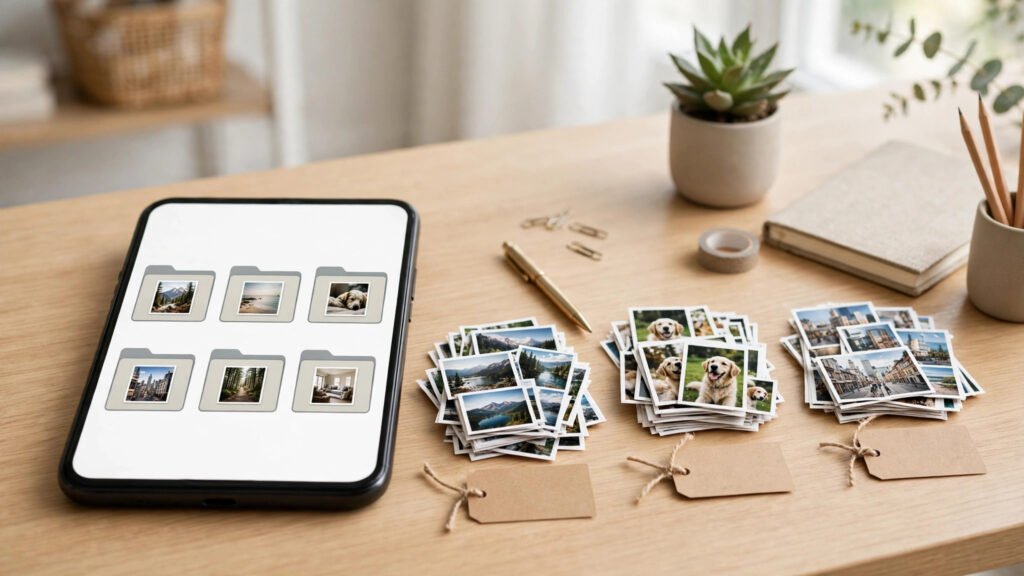
Learning how to organize phone photos into albums can turn a long, messy camera roll into a collection you can actually enjoy. Most of us take pictures every day — a meal with friends, a receipt we meant to keep, a screenshot for later, a sunset on a walk — and then never look at most of them again. The problem is rarely that we have too many memories. It is that the good ones are buried under everything else, and searching for one photo feels like a chore.
Key Takeaways
- Sort photos into a small set of albums by purpose, not by every single topic you can think of.
- Use clear, plain album names and a short weekly tidy-up so the system keeps working.
- Keep favourites and backups separate from sorting, so organizing never risks losing a photo.
An album system works best when it is simple enough to keep up with. If you create dozens of albums on day one, you will soon forget which one a photo belongs in, and the sorting will stop. A small set of albums, used consistently, beats a perfect system that nobody maintains. Start with the albums you will actually open, and let the rest grow slowly over time.
Start With a Small Set of Albums
Before you move a single photo, decide on a handful of albums that match your real life. Family, Friends, Travel, Home, Work, and Favourites are a good starting point for many people. You can add one or two more for things you photograph often, such as Pets, Food, or Ideas, but resist the urge to cover every possibility at once. When a photo could fit in two albums, put it in the one you would search first.
Think about how you look for photos, not how a library would file them. If you usually think, “that was on our trip last summer,” a Travel album will serve you better than separate albums for each city. If you usually think, “that was Maya’s birthday,” a Family or Friends album with a clear name will help you find it faster. Your albums should match your memory, because your memory is what you will use to search.
Sort in Short Bursts, Not One Giant Session
Trying to organize years of photos in one sitting is the fastest way to give up. Instead, sort in short bursts of ten or fifteen minutes. Start with the most recent month, when the photos are still fresh in your mind, and work backwards only when you feel like it. Older photos can wait — they are not going anywhere, and a half-sorted recent collection is far more useful than a project you abandoned on day one.
During each burst, move photos into albums and delete only the obvious duplicates, accidental shots, and blurry images you do not need. Do not try to judge every photo or relive every memory in the same session. Sorting is a filing task, not a trip down memory lane. If a photo makes you pause, put it in the most likely album and move on — you can always move it later.
Use Clear Album Names You Will Recognize Later
Album names matter more than most people expect. Vague names like “Stuff,” “Misc,” or “New Album” are almost impossible to search later, because they tell you nothing about what is inside. Use plain, specific names instead: “Family Holidays,” “Home Renovation,” “Work Projects,” or “Recipes to Try.” If you keep a travel album, adding the year or the place can help too, such as “Greece Trip” rather than just “Travel.”
It also helps to keep your naming style consistent. If one album is called “Kids” and another is “The Children,” you will hesitate every time you sort. Pick one style and stick with it. The same habit makes it easier to organize your digital files on your computer, too, because the same clear names work in both places.
Separate Favourites, Screenshots, and Backups
Not every photo belongs in a themed album. Favourites are for the pictures you want to show people or return to often, so mark them as you sort rather than creating a second copy in another album. Screenshots, receipts, and temporary images deserve their own treatment: keep a single album for reference shots, and clear it out regularly, so useful screenshots do not drown your real photos.
Backups are a different job from sorting, and the two should not be confused. Sorting moves photos around on your phone; backing up protects them if the phone is lost or damaged. Before a big tidy-up, make sure you know how to back up your phone photos automatically, so a mistaken delete never becomes a lost memory. Once backups are running, you can sort with much more confidence.
Keep the System Alive With a Weekly Tidy-Up
An album system only earns its keep if it survives everyday use. Set aside five minutes once a week — on a Sunday evening, for example — to sort the photos from the past few days into their albums. That small habit prevents the camera roll from piling up again, and it is far easier than another big sorting session months later. While you are at it, delete the screenshots you no longer need and mark any new favourites.
If your phone feels full even after sorting, remember that organizing and storage are two different problems. Sorting helps you find photos; it does not by itself create space. For that, you may need to free up phone storage without deleting photos, for example by moving full-resolution copies to a backup and keeping smaller versions on the phone. Do the storage step separately, after your albums are in shape, so you are not making two kinds of decisions at once.
What to Watch Next
Once your albums are set up, the next step is simply to keep using them: sort in short bursts, use clear names, keep favourites and backups separate, and tidy up for a few minutes each week. Over time, your camera roll will stop being a pile of pictures you avoid and become a collection you can browse, share, and enjoy — and the photo you want will be in the album where you expect to find it.