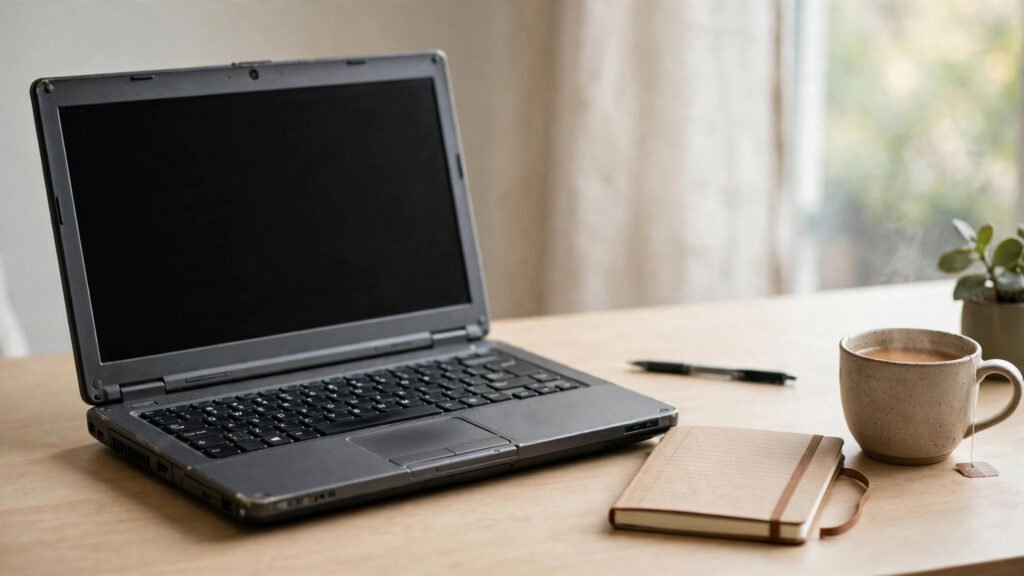
When a laptop starts to feel slow, the first thought is often to replace it. Yet in many cases, you can speed up an old laptop with a careful clean-up and a few sensible changes, without spending money on a new machine. A slow laptop is not always a dying laptop. Often it is simply carrying too many startup programs, too many open tabs, and too many files it no longer needs.
This guide walks through the simple steps that usually make the biggest difference, in an order that keeps your work safe. Start with the easy wins, back up anything important before you delete anything, and change one thing at a time so you can tell what actually helped.
Key Takeaways
- Start with startup programs, browser tabs, and storage space before considering any hardware change.
- Back up important files first, then remove only what you recognise and no longer need.
- Keep the routine small and regular, so the laptop stays fast instead of slowing down again.
Find Out What Is Slowing Down Your Old Laptop
Before you change anything, take a few minutes to notice where the slowness shows up. Does the laptop take a long time to start, or does it only slow down once the browser is open? Does one program freeze while the rest work fine? These clues matter, because a slow startup usually points to too many programs launching at once, while a slow browser usually points to too many tabs and extensions.
Open your system settings and look at which programs start automatically when the laptop turns on. Many programs add themselves to startup without asking clearly, and each one takes a share of attention from the moment you log in. Turning off the ones you do not need every day is often the single fastest improvement, and it costs nothing.
Speed Up an Old Laptop by Clearing Startup Programs and Tabs
To speed up an old laptop, begin with what runs in the background. Keep only the essentials at startup, such as your security software, and open other programs when you actually need them. If you are unsure about a program, leave it alone rather than guessing, and look up its name before switching it off.
Browser habits matter just as much. Each open tab uses memory, and tabs left open for days quietly add up. Close tabs you have finished with, bookmark pages you want to return to, and review your browser extensions once in a while. An extension you installed years ago and forgot about may still be running on every page you visit.
A tidy desktop helps too. If your desktop is covered in files, take time to sort them properly, as explained in our guide on how to declutter your computer desktop and downloads. A clear workspace makes the laptop easier to use and your files easier to find.
Free Storage Space Without Losing Important Files
When storage runs low, a laptop can struggle with everyday tasks. Check how much free space you have, then look for the obvious clutter first: duplicate downloads, old installers, large video files you have already watched, and screenshots you no longer need. Delete only what you recognise, and empty the trash or recycle bin afterwards so the space is actually freed.
Before deleting anything important, make a copy somewhere else, such as an external drive or a cloud folder you trust. Once your files are safe, sorting the rest becomes much less stressful, and our guide on how to organize your digital files offers a simple folder system that is easy to keep up.
A slow laptop is not always a dying laptop.
Keep Your System Updated and Your Habits Simple
System updates often include performance fixes and security improvements, so keeping your operating system up to date is worth the short wait. The same goes for your browser. Set updates to run when you are not in the middle of important work, and restart the laptop after an update so the changes take effect properly.
Restarting regularly also helps. Many people leave a laptop running for weeks, and small problems build up quietly. A restart once or twice a week clears temporary clutter and gives the system a fresh start, and it takes far less time than most people expect.
- Turn off unneeded startup programs and keep only the essentials.
- Close finished browser tabs and review old extensions.
- Free storage space, but back up important files before deleting anything.
- Update the system and browser, then restart regularly.
- Change one thing at a time, so you know what actually helped.
When a Small Hardware Change Is Worth Considering
If the software clean-up helps but the laptop still feels slow, a hardware change may be worth considering, but it is not always necessary. The most common option people discuss is replacing an old hard drive with a solid-state drive, or adding more memory, but both depend on the model, and both are best done by someone who knows the machine. If you are not comfortable opening a laptop, ask a trusted repair shop for advice before buying any part.
For many everyday tasks, such as writing, browsing, email, and video calls, a software clean-up is enough. A calmer daily routine also helps: plan your work in focused blocks, as in our guide on how to use time blocking to plan your workday, so the laptop is doing one job at a time instead of juggling everything at once.
What to Watch Next
The next step is simple: keep the routine going. Check startup programs now and then, close tabs you have finished with, and clear out downloads before storage runs low again. Back up important files before any bigger change, and change one thing at a time. With those habits in place, an old laptop can stay useful for everyday work for much longer than a slow first week might suggest.