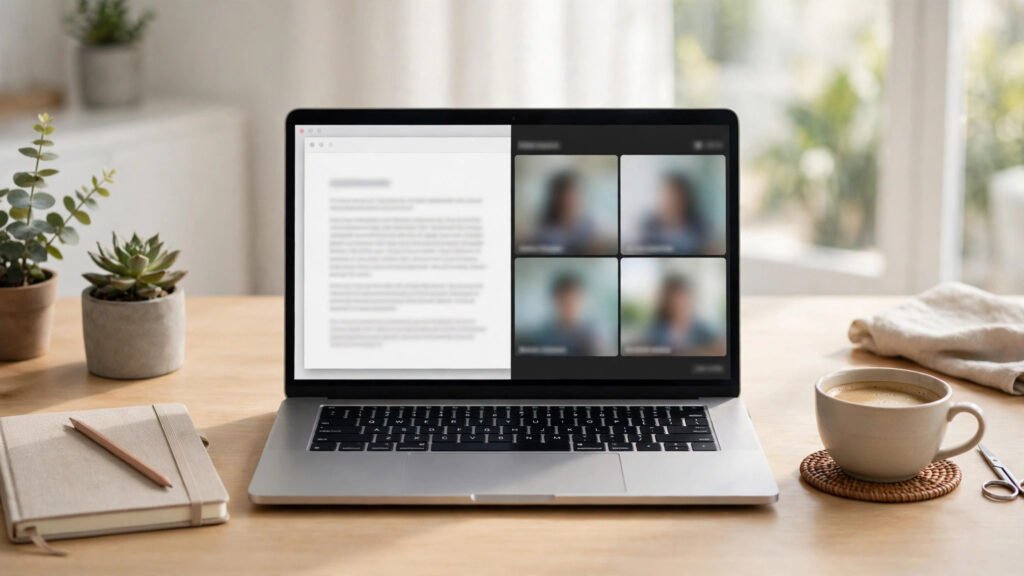
Learning how to use split screen is one of the simplest ways to stop losing time to constant tab-switching. Instead of flipping back and forth between two windows, you place them side by side on the same screen, so you can read on one side and work on the other without losing your place.
Split screen is useful for everyday tasks: following a tutorial while you practise the steps, comparing two documents, keeping your notes visible during a video call, or checking a list while you fill in a form. You do not need extra software or a second monitor to start, because the feature is already built into most computers, phones, and tablets.
Key Takeaways
- Split screen puts two windows side by side, so you can read and work at the same time.
- Start with one clear job per side, and keep the layout simple until it feels natural.
- If a window will not snap into place, try a smaller window size or a different layout first.
What Split Screen Actually Does
Split screen divides your display into two areas, with one window in each area. Each window keeps working normally: you can scroll, type, click links, and watch video in either half. The only change is the size and position of the windows.
That simple change matters because switching tabs breaks your train of thought. Every time you leave a page to check something else, you have to find your place again when you return. With both windows visible, the information you need stays in front of you, and the task feels calmer and easier to follow.
Split screen works best when each side has one clear job, so your eyes know where to look.
How to Use Split Screen on Windows
On a Windows computer, open the two windows you want to use, then drag the first window to the left or right edge of the screen until you see an outline appear, and let go. The window will fill that half of the screen, and Windows will usually show your other open windows so you can pick one for the remaining half.
You can also use the keyboard: click the window you want to move, hold the Windows key, and press the left or right arrow key to snap it to that side. Repeat the same shortcut with the second window to fill the other side. To change how much space each window gets, drag the divider between them left or right until the balance feels right.
When you finish, drag one window away from the edge, or use the maximise button, to return to a single full-size window. Nothing is deleted or closed when you leave split screen; your windows simply return to their normal size.
How to Use Split Screen on a Mac
On a Mac, hover over the green full-screen button in the top-left corner of a window until a small menu appears, then choose the option to tile the window to the left or right side of the screen. The other side will show your remaining open windows, and you can click one to fill it.
As on Windows, you can drag the divider in the middle to give one side more room. This is handy when one window needs more width, for example a document you are reading, while the other side only holds a short checklist. Press the Escape key, or use the green button again, to leave the split view when you are done.
How to Use Split Screen on Your Phone or Tablet
Many Android phones and tablets support split screen from the recent-apps view. Open the first app, open the recent-apps screen, and look for a split-screen or multi-window option on that app. Then choose a second app for the other half. On many tablets, you can also drag an app from the dock or taskbar to one side of the screen.
Phone screens are smaller, so split screen works best for short tasks, such as copying a detail from a message into a note, or watching a short video while you check a list. If the text feels cramped, try turning the phone sideways for a wider view, or switch back to one app at a time. For longer work, a computer screen, or even using your phone as a second monitor, gives you more comfortable room.
Simple Layouts That Work Well
The best split-screen layout depends on the task, but a few pairings cover most everyday needs. Try these combinations first:
- Tutorial on one side, practice document on the other, so you can follow each step without switching tabs.
- Notes on one side, video call on the other, so you can check your points without leaving the call.
- Shopping list or comparison page on one side, order form on the other, so details stay visible while you type.
- Draft on one side, source material on the other, so you can check facts without losing your place.
Keep the pairing simple. Two busy windows side by side can feel crowded, so close anything you do not need for this task. A tidy starting point helps here too: if your desktop is cluttered with old files, the guide on how to declutter your computer desktop and downloads can make it easier to find the windows you actually want.
Common Problems and Easy Fixes
Sometimes a window will not snap into place. This usually happens when the window is already maximised or set to a fixed size, or when the app does not support resizing. Try restoring the window to a smaller size first, then drag it to the edge again. If the app still refuses to resize, use it full-screen and keep your notes in a separate app you can switch to quickly.
Another common problem is text that feels too narrow to read. Drag the divider to give the reading side more width, increase the zoom in that app, or use a larger screen when you can. If you find yourself constantly hunting for saved pages, organising your browser bookmarks will also save time, because the pages you need will be one click away instead of buried in a long list.
Finally, remember that split screen is a tool, not a rule. If a task needs your full attention, such as writing a careful message or reading a long document, one full-size window may work better. Use split screen when comparing, copying, or following steps, and switch back to a single window when focus matters more than comparison.
What to Watch Next
Split screen works best when each side has one clear job, so start with a simple pairing, such as a tutorial beside a practice document, and adjust the divider until both sides are comfortable to read. If a window will not snap, try a smaller window size first, and remember that you can leave split screen at any time without losing your work. Once the habit feels natural, it becomes a quiet time-saver for the everyday tasks where two windows are better than one.